


Introduction
In the world of SEO, one of the simplest yet most impactful actions you can take is updating your XML sitemap and submitting it to Google Search Console (GSC). Your sitemap acts like a master list of all important pages on your website it tells search engines what to crawl, what has changed recently, and which URLs matter the most.
When your sitemap is outdated, Google may take longer to index your new pages, may continue indexing pages you’ve removed, or worse, might not understand your website structure correctly. That’s why updating and resubmitting your XML sitemap is essential for maintaining healthy indexing and improving overall visibility in search results.
This blog walks you through what an XML sitemap is, why it matters, and how to update it step-by-step inside Google Search Console with SEO best practices and FAQs at the end.
Overview
An XML sitemap is a machine-readable file that contains a list of all the URLs you want Google to crawl. This file usually lives at:
https://yourdomain.com/sitemap.xml
Search engines rely on it to:
- Discover new pages quickly
- Re-crawl updated pages
- Understand your URL priorities
- Avoid wasting crawl budget on unwanted links
- Maintain clean indexing
Most CMS platforms like WordPress, Shopify, and Webflow generate sitemaps automatically. But whenever you add pages, redesign a site, delete content, or restructure URLs, your sitemap must reflect those changes and Google must be notified through Search Console.
Steps to Update XML Sitemap in Google Search Console
Below is a clean, detailed step-by-step process. You can format it exactly as it is in your blog.
Step 1: Ensure Your Sitemap is Updated Correctly
Before you do anything in Search Console, first make sure your actual sitemap reflects your latest website structure. If you use:
WordPress (Yoast / RankMath / AIOSEO)
Your sitemap updates automatically when:
- You publish a new page
- You delete or noindex a page
- You modify your site structure
Shopify/Webflow/Wix
Your CMS generates and updates the sitemap by default.
Custom Website
You may need to:
- Ask your developer
- Use Screaming Frog
- Use XML-sitemap generator tools
Your updated sitemap must be reachable at its public URL before submission.
Step 2: Log in to Google Search Console
Go to:
https://search.google.com/search-console
Select the correct property (domain) that you want to update.
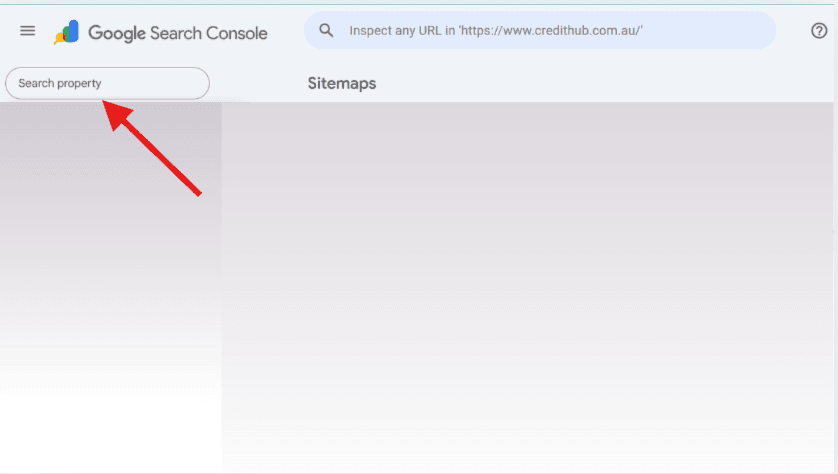
If you’ve recently added your website, make sure it’s verified before submitting any sitemap.
Step 3: Access the Sitemaps Section
On the left menu, go to:
Indexing → Sitemaps
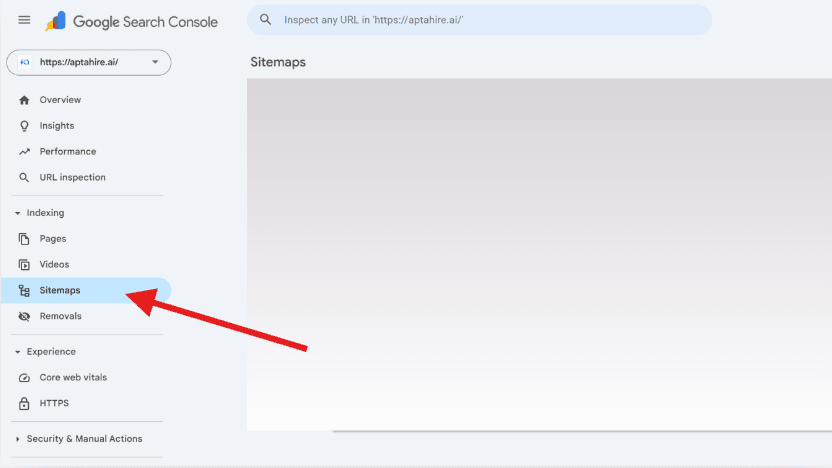
This section shows all historical sitemaps, submission dates, and any errors Google discovered earlier.
Step 4: Remove Old or Incorrect Sitemaps (If Needed)
If your previously submitted sitemap is outdated or wrong, remove it to avoid confusion.
To remove:
- Click the “⋮” icon next to the old sitemap
- Select Remove Sitemap
Removing does not harm SEO; it simply ensures Google focuses on your updated version.
Step 5: Submit the Updated Sitemap URL
In the “Add a new sitemap” field, enter the full sitemap path.
Examples:
sitemap.xmlsitemap_index.xmlproduct-sitemap.xmlpost-sitemap.xml(Yoast)
Then click Submit.
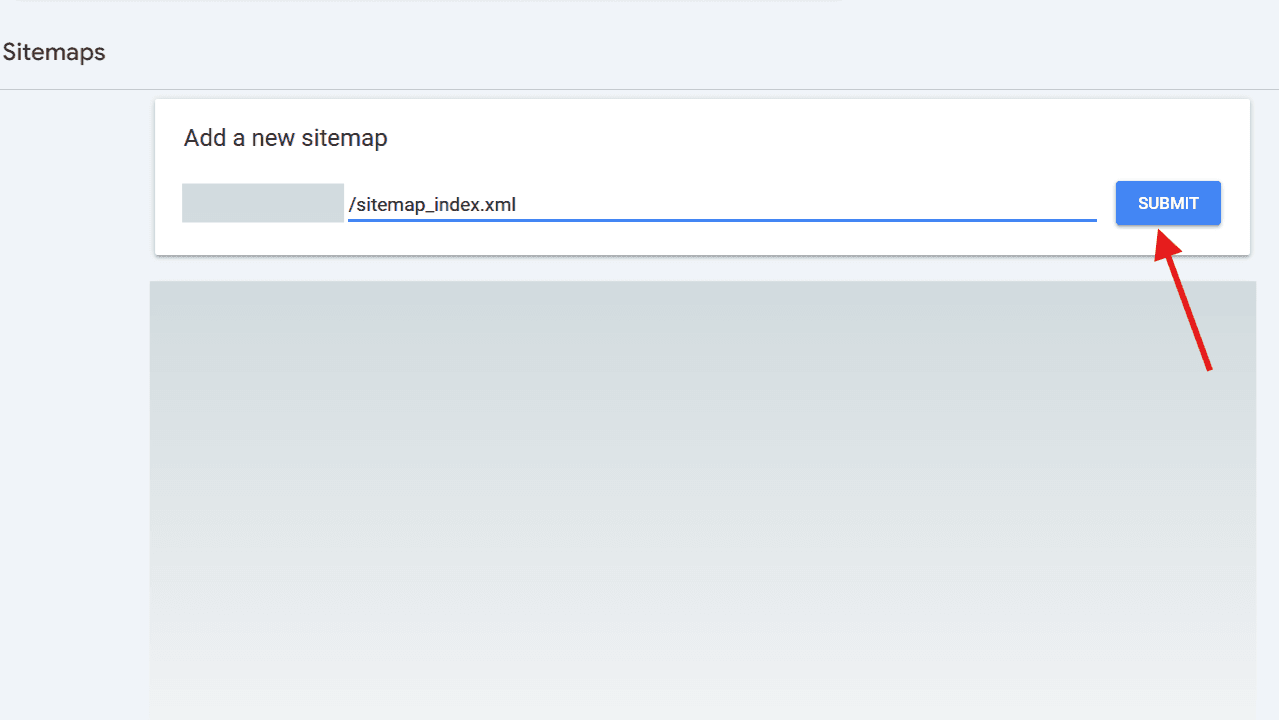
Google will fetch the sitemap, process it, and show its status within seconds.
Step 6: Check Sitemap Submission Status
After submitting, you will see:
- Success → Google can read it
- Has Issues → You need to resolve errors
- Couldn’t fetch → Server or formatting issue
Click on the sitemap to view details:
- URLs discovered
- Last read date
- Errors or warnings
Fix any problems and resubmit if needed.
Step 7: Monitor Indexing Through “Pages” Report
Sitemap submission does not guarantee instant indexing.
Go to:
Indexing → Pages
Here, you can see:
- Indexed URLs
- Not indexed URLs
- Reasons for non-indexing
- Crawl anomalies
Your goal is to ensure important URLs appear under “Indexed.”
Step 8: Follow SEO Best Practices While Updating Your Sitemap
To improve crawlability and indexing, follow these rules:
1. Include only canonical URLs
Avoid duplicates or parameters like:
- /?search
- /category?page=2
2. Don’t add noindex or blocked pages
Remove:
- Checkout pages
- Login pages
- Admin URLs
- Internal search result pages
3. Keep your sitemap within Google limits
A single sitemap must include:
- Maximum 50,000 URLs
- Maximum 50MB file size
Split large sitemaps using sitemap index files.
4. Ensure lastmod timestamps are accurate
Google uses this to determine freshness.
Update it only when meaningful content is updated.
5. Reference your sitemap in robots.txt
Add this line:
Sitemap: https://yourdomain.com/sitemap.xml
This helps Google find the sitemap automatically.
Conclusion
Updating your XML sitemap in Google Search Console is one of the easiest and most reliable SEO actions you can take to help Google understand and index your website properly. Whether you’re launching new content, cleaning up old URLs, or restructuring your pages, submitting an updated sitemap ensures Google gets the new information quickly.
A clean, error-free sitemap improves crawl efficiency, prevents index bloating, and boosts your ability to rank for important keywords. If you maintain your sitemap regularly and use Search Console to monitor indexing behavior, your site will stay healthy and visible in search results.
Frequently Asked Questions (FAQ)
1. How often should I update my XML sitemap?
Update your sitemap whenever you:
- Publish new content
- Delete old content
- Change URL structure
- Add important landing pages
For CMS sites like WordPress, updates happen automatically.
2. Does submitting a sitemap guarantee indexing?
No. Google decides what to index based on quality, relevance, and crawl budget.
But a correct sitemap helps speed up discovery.
3. What if Google shows “Couldn’t fetch sitemap”?
This usually means:
- Sitemap URL is wrong
- Server is down
- Sitemap format is incorrect
Fix the issue, then resubmit.
4. Should I include images or videos in my sitemap?
If images or videos are important for your SEO strategy, using image/video sitemaps can improve visibility in Google Image Search or video search results.
5. Is it okay to have multiple sitemaps?
Yes.
Large websites often have:
- Post sitemap
- Page sitemap
- Product sitemap
- Category sitemap
All grouped under one sitemap_index.xml file.